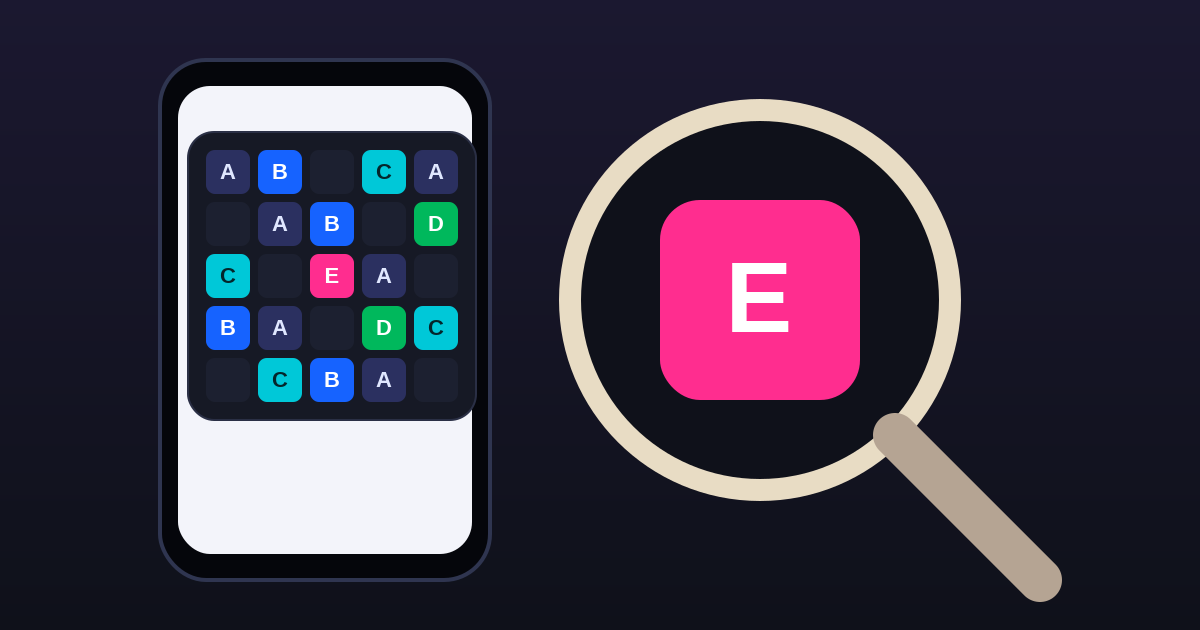
Quick answer: The best puzzle games for older adults have large, high-contrast pieces, simple tap controls, no time pressure and no sign-up. Then a few phone settings (larger and bold text, dark or light mode, and reduced motion) make almost any game more comfortable to play.
Puzzle games are a favourite pastime for many people in their 60s, 70s and beyond. They're absorbing, they can be played in short bursts, and there's always a new challenge. But many games are designed with small text, fiddly controls and constant pop-ups. This guide helps you pick games that are a pleasure to play, and set up your phone or tablet so they're easy on the eyes and hands.
What should you look for in a puzzle game?
| Look for | Why |
|---|---|
| Large pieces with clear letters or numbers | Easy to read at arm's length, without strain |
| Strong contrast between pieces and background | Easier to see, especially in bright light |
| Tapping rather than precise swiping or dragging | Simpler and more reliable for many hands |
| No countdown timers | Time to think, without pressure |
| Short games with a clear goal | A satisfying finish in a few minutes |
| No account or personal details needed | Start straight away and stay private |
| Few or no interruptions | No pop-ups breaking your concentration |
| Sound you can switch off | Play quietly anywhere |
A tablet's bigger screen can make any puzzle easier to see. A simple stand helps if holding a device for long is tiring.
Which phone settings make puzzles easier to play?
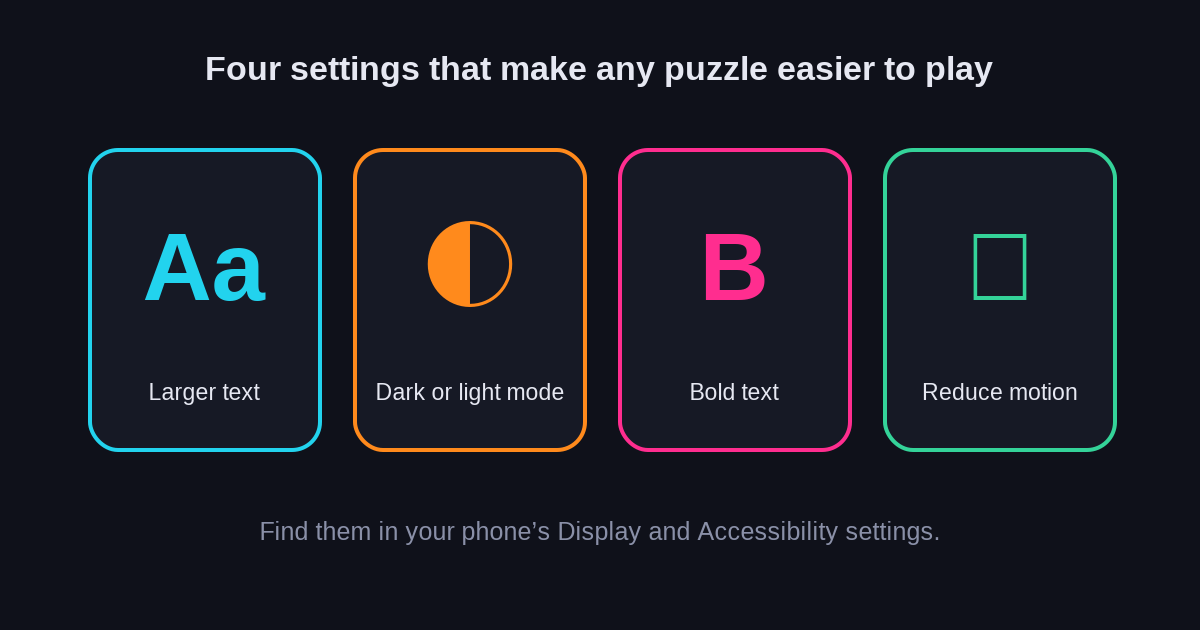
These settings work across most apps, not just games. The exact names vary a little between phone makers and versions.
On an iPhone or iPad
- Larger text: Settings → Accessibility → Display & Text Size → Larger Text.
- Bold text: Settings → Accessibility → Display & Text Size → Bold Text.
- Dark or light mode: Settings → Display & Brightness. Choose whichever is easier for you to read.
- Reduce motion: Settings → Accessibility → Motion → Reduce Motion. This tones down animations in apps that support it.
- Zoom in a web page: in Safari, use the page settings menu in the address bar to make the whole page bigger.
On an Android phone or tablet
- Font size and display size: usually under Settings → Display, or Settings → Accessibility.
- Dark theme: usually under Settings → Display.
- Remove animations: usually under Settings → Accessibility.
- Zoom a web page: in Chrome, the ⋮ menu → Settings → Accessibility lets you set text scaling.
How do you stay safe playing games online?
- Be wary of games that ask for personal details such as your date of birth, address or bank details just to play.
- Watch out for in-game purchases. Some games are designed to tempt you into spending. Know where the purchase buttons are before you start, and consider turning on purchase approval if someone helps you manage your phone.
- Only download apps from the official app store, or play in your web browser on a website you trust.
- Ignore pop-ups claiming you've won a prize. Close them, don't tap inside them.
Which kinds of puzzles are most popular with older adults?
- Word puzzles such as crosswords and word searches, for vocabulary lovers.
- Number puzzles such as sudoku and 2048, for those who enjoy patterns and logic.
- Jigsaws, which are relaxing and visual.
- Merge puzzles, which combine matching pieces into bigger ones and reward planning ahead.
- Daily puzzles, with one new challenge a day that the whole family can play and compare.
There's no single right choice. The best game is one you look forward to.
How was PULL designed for comfortable play?
PULL is a letter merge puzzle that tries to get these basics right:
- Big, bold letter tiles with strong colours, in day and night modes (Settings → Theme).
- Tap to play: tap a letter and its matches slide to it. No precise swiping or dragging.
- No timers. Think as long as you like.
- Sound effects you can switch off in Settings.
- It follows your phone's Reduce Motion setting, keeping animations to a minimum.
- No sign-up and no personal details. It runs in your web browser and can be added to your home screen.
New to it? Our beginner's guide to PULL explains the rules in a minute. If you'd rather not install apps at all, see how to play puzzle games without downloading anything.
Key takeaways
- Choose games with large, high-contrast pieces, tap controls and no timers.
- Turn on larger or bold text, pick dark or light mode, and reduce motion if animations are distracting.
- Avoid games that ask for personal details or push purchases.
- Play what you enjoy; variety keeps things fresh.
Frequently asked questions
What are the best puzzle games for seniors?
Games with large, clear pieces, simple tap controls and no time pressure, such as word puzzles, sudoku, jigsaws and merge puzzles like PULL. The best one is the one you enjoy playing.
How can I make the text bigger in games on my phone?
On an iPhone, go to Settings → Accessibility → Display & Text Size → Larger Text. On Android, look under Settings → Display or Accessibility for font size. Some games also have their own size or theme settings.
Are free puzzle games safe for older adults?
Many are, but be careful with games that ask for personal or payment details, show pop-ups claiming you've won something, or push in-game purchases. Playing in a trusted website or an app from the official store is safest.
Is tapping easier than swiping for older players?
For many people, yes. A single tap is quicker and more reliable than a precise swipe or drag, especially on a small screen.
Do I need to create an account to play PULL?
No. PULL needs no account or personal details. Your progress is saved on your own device.